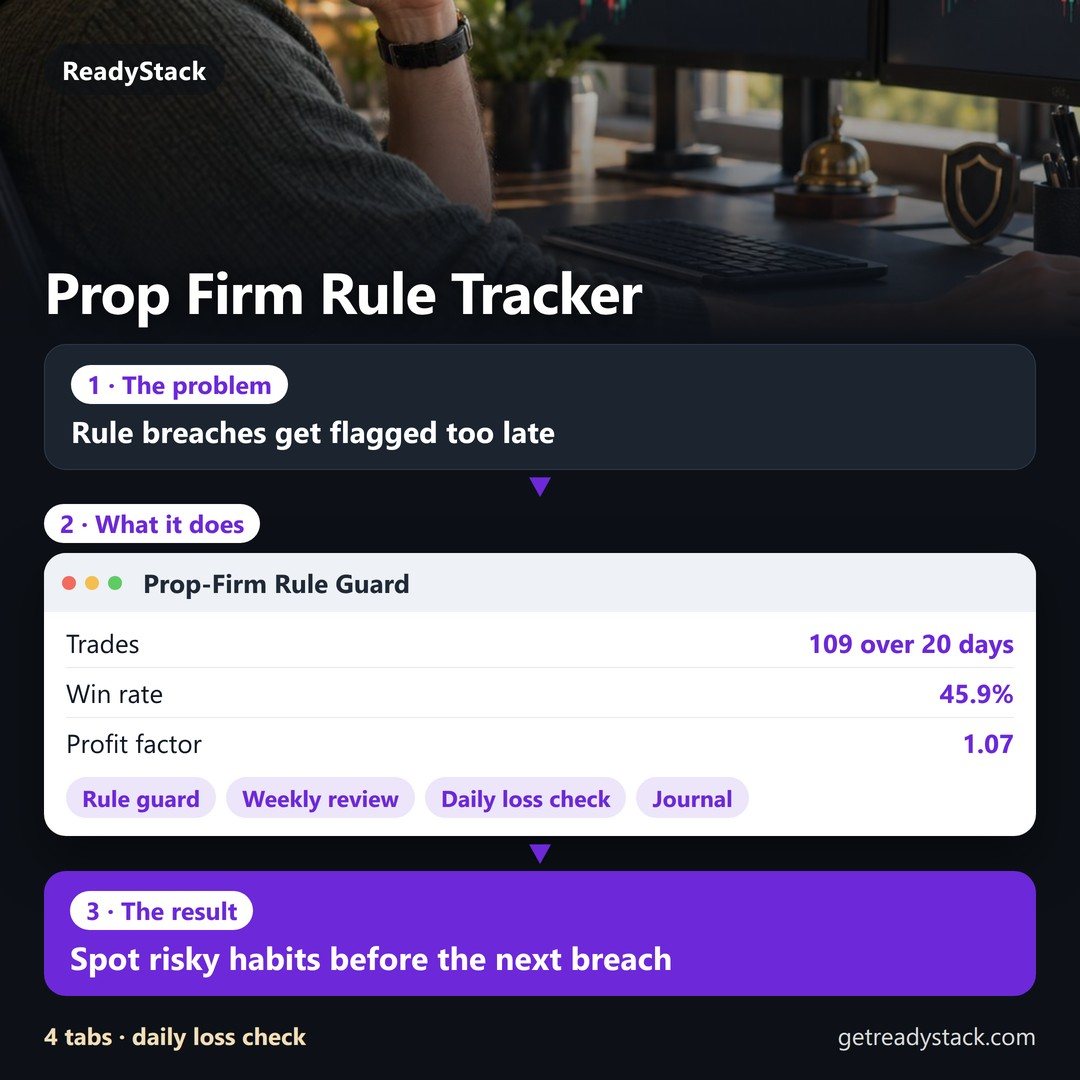
How it works
- Export your trades from your platform (Tradovate, NinjaTrader, TradingView, MetaTrader, TopstepX, Rithmic or any CSV).
- Drop the file here. The report is ready in a second. The file never leaves your browser.
- Pick your firm and account size, and the rule guard tells you before every trade how much room is left.
Free
The full report on any file: net P&L, win rate, profit factor, expectancy, average win and loss, max drawdown, equity curve, P&L by setup, symbol, hour, weekday, side and holding time, your three most expensive habits in plain words, and a daily-loss check on the file.
Pro — $14.99 a month or $119.99 a year
- Live rule guard: the most the next trade may lose before the daily loss limit or the drawdown floor, in money and in contracts for your stop, with alerts at 50, 75 and 90 percent.
- Firm presets with the rule shape done right: static, end-of-day trailing and intraday trailing drawdown with lock, balance or equity daily loss, best-day consistency, profit target. Each preset shows its source and date and stays editable.
- A saved journal across imports and accounts on this device: duplicates skipped, setups and notes per trade, CSV export and a printable report.
- Weekly review of your own trades: revenge trades, trading after the third loss, losers held longer than winners, size on losers, weak hours and days — plus an AI coach note in your language that only sees those numbers, never your trades.
Record keeping and arithmetic on your own trades. No signals, no trade ideas, no market calls, no investment advice. Rules shown are starting values; your firm's dashboard is the final word.
Plans
How to export your trades
- Tradovate
- Account Reports → Performance → choose the dates → Download Report (CSV). The P&L there is before commissions: put your round-trip fee in Import options.
- NinjaTrader 8
- Control Center → New → Trade Performance → pick account and dates → Generate → Trades tab → right-click the grid → Export → CSV. Gross or net is detected from the Cum. net profit column.
- TradingView
- Strategy Tester → List of trades → export (download icon). Entry and exit rows are joined into one trade; the signal name becomes the setup.
- MetaTrader 4 / 5
- Toolbox → History → right-click → Report. Open the file in a spreadsheet and save the positions table as CSV. Balance and deposit rows are skipped; commission and swap are included.
- TopstepX
- Trades tab (not Orders) → Export → choose the date range. Fees and commissions are subtracted.
- Rithmic R|Trader Pro
- Recent Orders → Completed Orders → add the columns Qty Filled, Avg Fill Price, Update Time and Commission → right-click → export CSV (one day per file; drop several files at once). Fills are paired first-in-first-out into round trips with the futures point value.
- Any other platform
- Any CSV with a close date and a P&L column, or a fill list with side, quantity, price and time. If the columns are not recognised you pick them once.
Questions
Do my trades leave my computer?
No. The file is read by this page in your browser. With Pro, the journal is saved in this browser's storage. The only things sent anywhere are your licence key (to check it) and — only when you press "Write my coach note" — the aggregate numbers of your week, which you can read before sending. No trade rows, symbols, times or account names.
Which brokers and platforms work?
Tradovate Performance reports, NinjaTrader 8 trade grids, TradingView lists of trades, MetaTrader 4/5 history, TopstepX trades, Rithmic R|Trader completed orders and any order-fill export (paired into round trips), plus any CSV with a date and a P&L column. A line under the import compares our total with the file's own total when the file has one, so a wrong import shows itself.
How does it warn me before I break a rule?
The rule guard takes your balance at the start of the trading day, the trades you have closed today (imported or typed in one by one) and the open P&L you enter, and works out the room to the daily loss limit and to the drawdown floor — whichever is closer. That room, minus the reserve you keep back, is the most the next trade may lose; with your stop in ticks it becomes a number of contracts. It can alert you at 50, 75 and 90 percent.
Are the firm rules correct?
Presets are starting values with their source and the date we checked them: FTMO 1-Step and 2-Step from ftmo.com (checked 2026-10-22), the Topstep Combine maximum loss limit from Topstep's help centre (page dated 2026-09-18), and Apex marked "confirm". Firms change their rules often, so every field stays editable and your firm's dashboard is the final word.
Is this trading advice?
No. It records and measures your own trades and does arithmetic on the rules you choose. It gives no signals, no trade ideas and no market calls, and it makes no promise about results.
I bought the ReadyStack Trade Journal before. Do I pay again?
No. A key from the earlier Trade Journal + Prop Firm Rule Guard opens Pro here too.
How do I cancel?
In your Whop account under your purchases. Pro stays on until the end of the period you paid for.
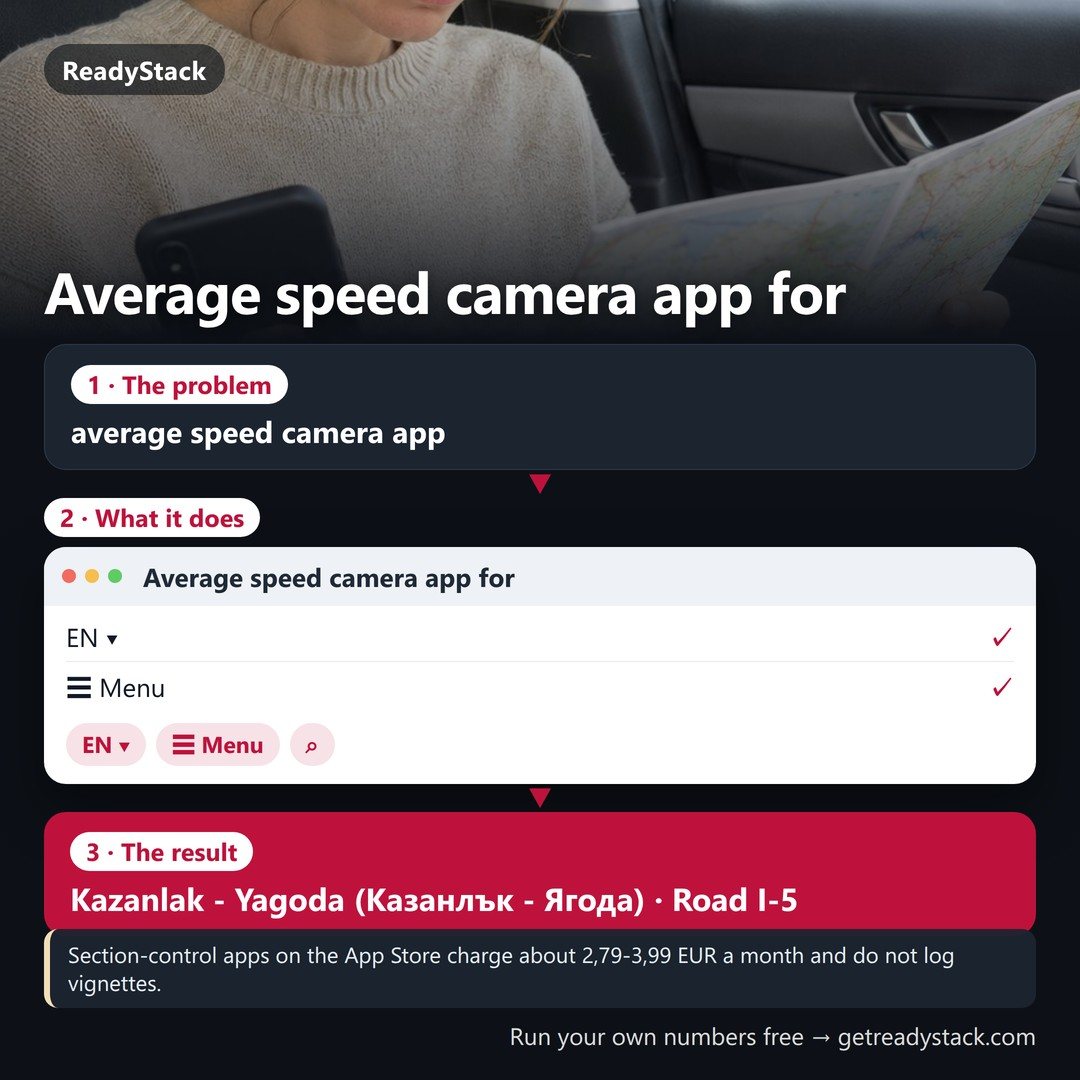 Average speed camera app for Bulgaria’s section control
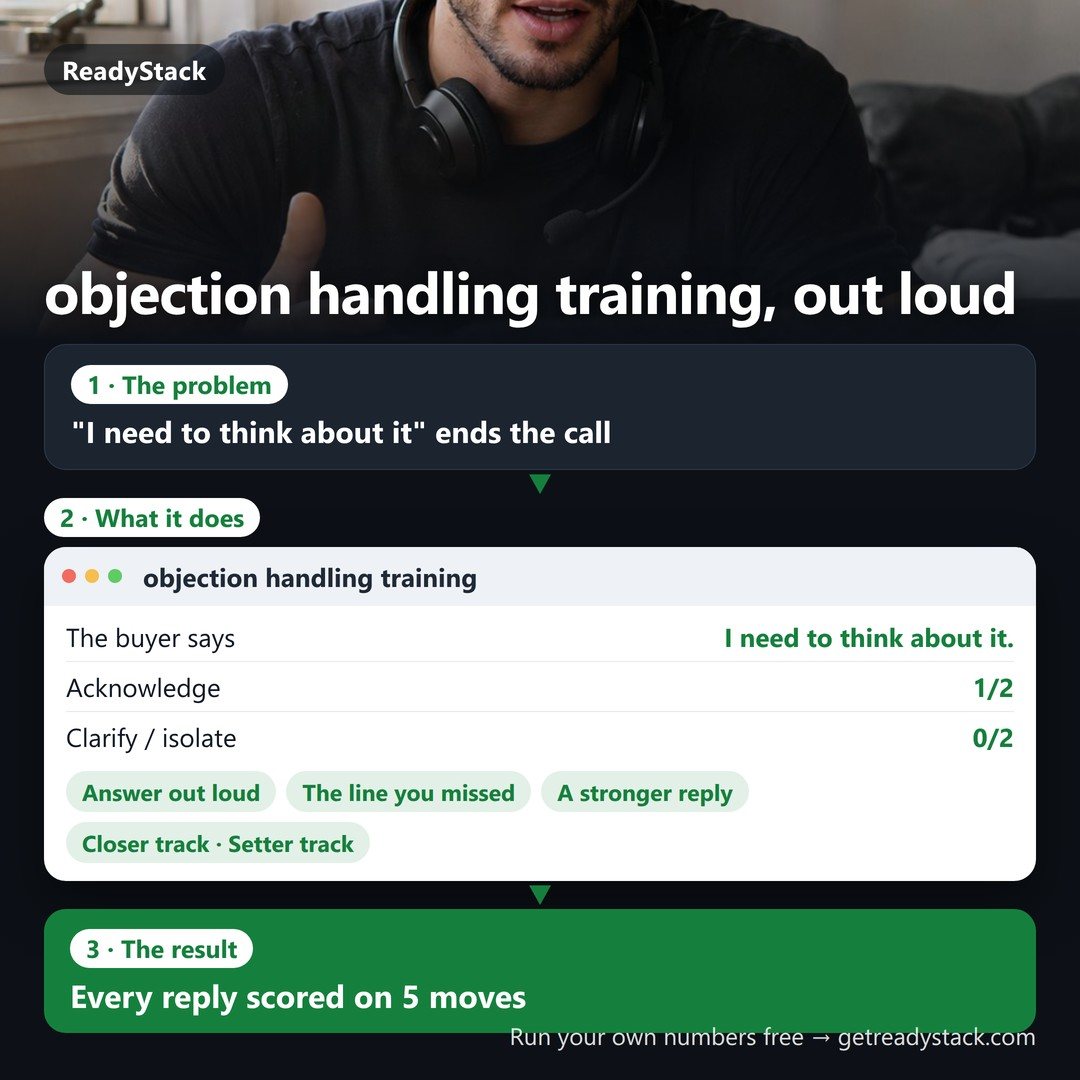 objection handling training: answer real buyer objections out loud, every reply scored
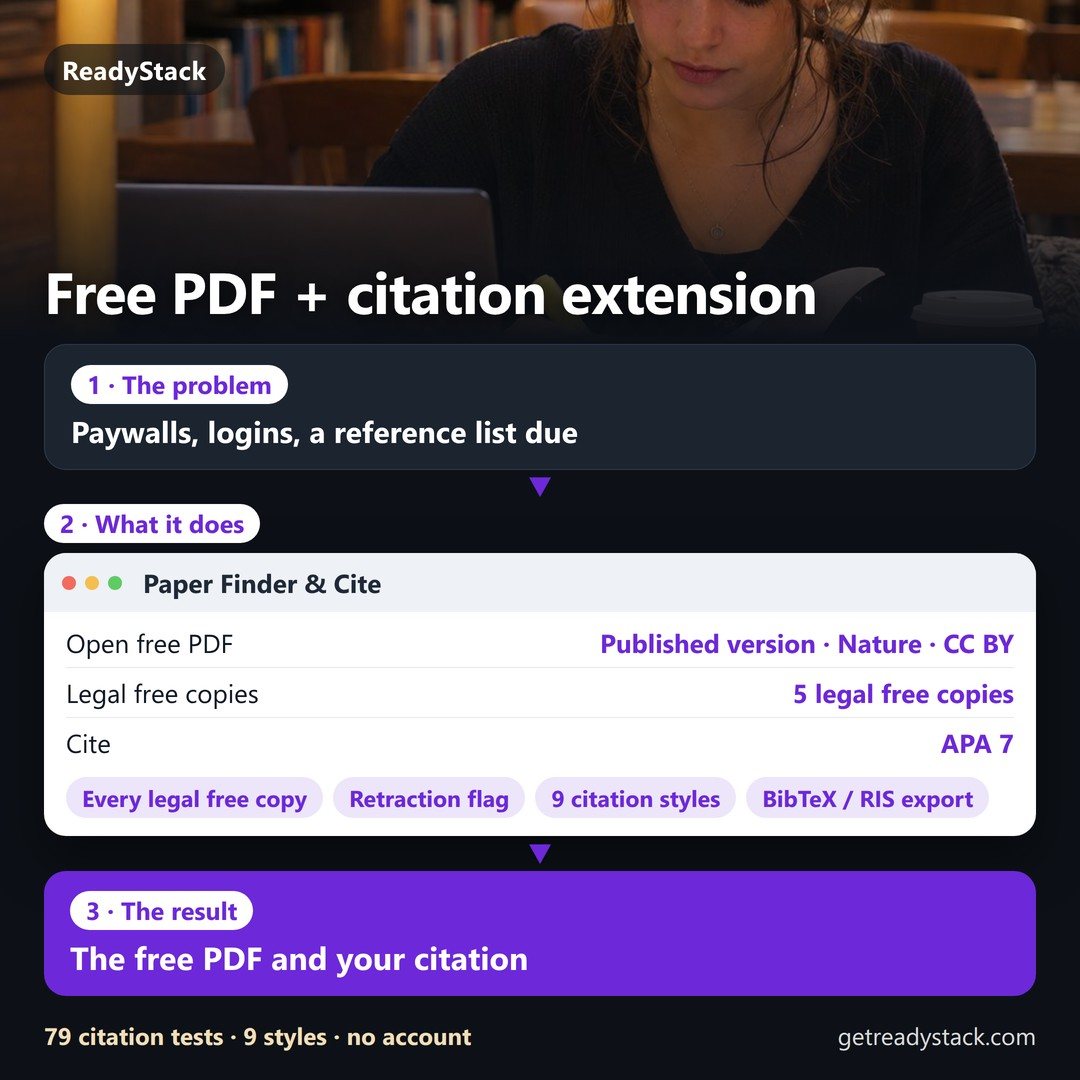 Free pdf citation extension – Paper Finder & Cite — legal free PDF of any paper + citation in APA, ABNT, DIN, SIST02
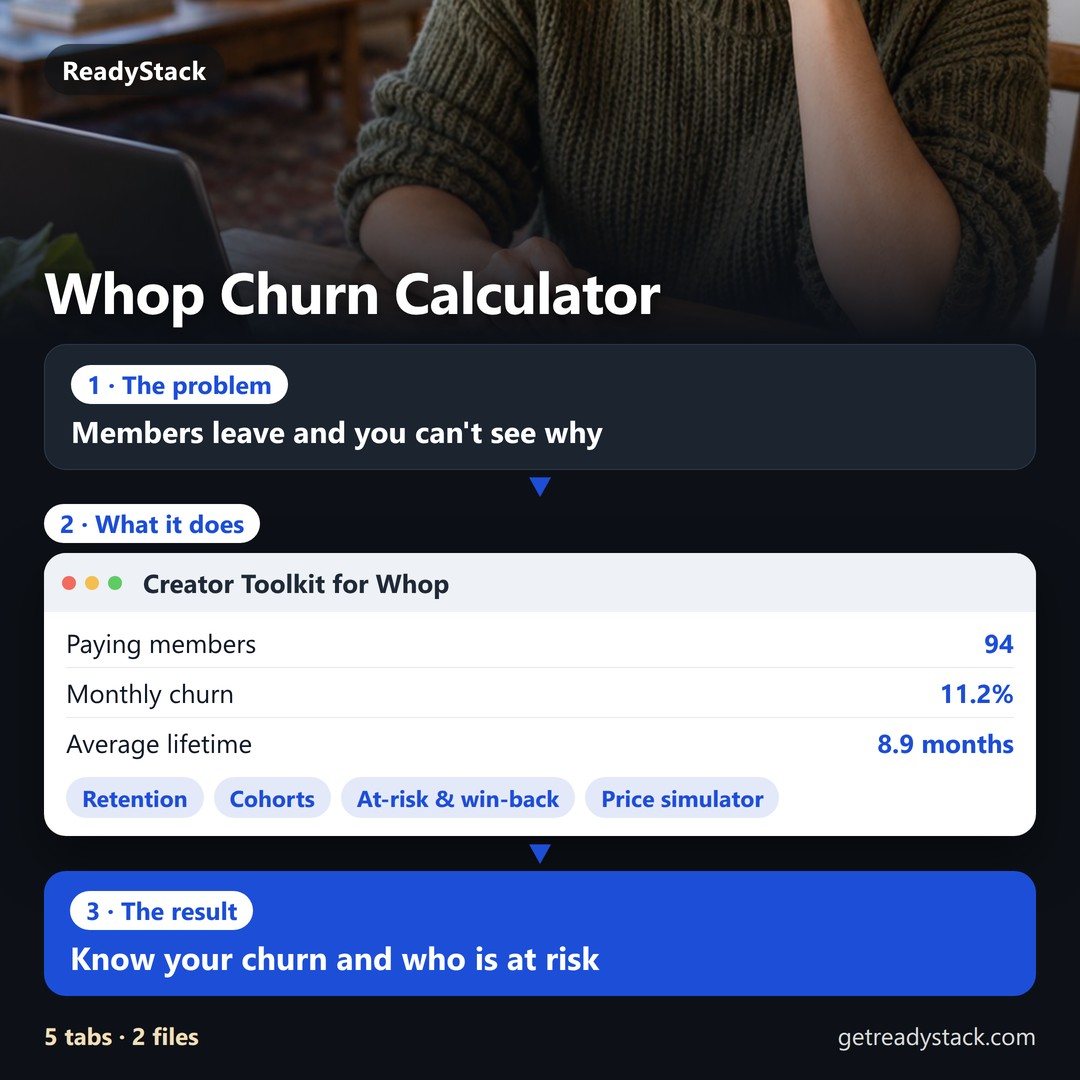 Creator Toolkit for Whop
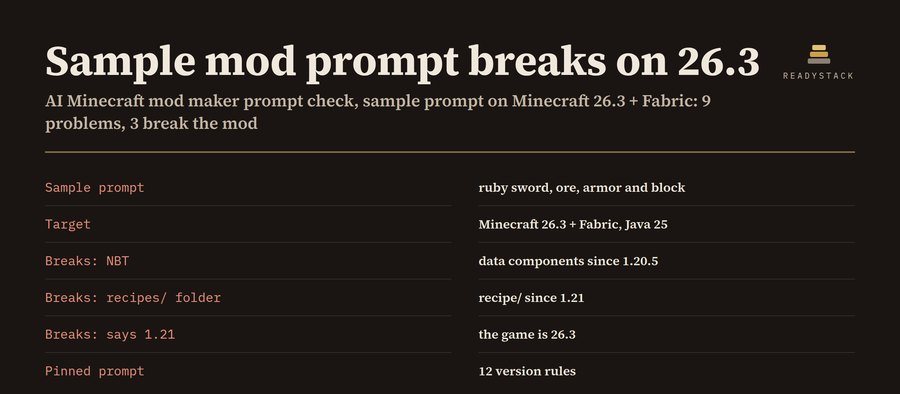 AI Minecraft Mod Maker Prompts That Actually Work
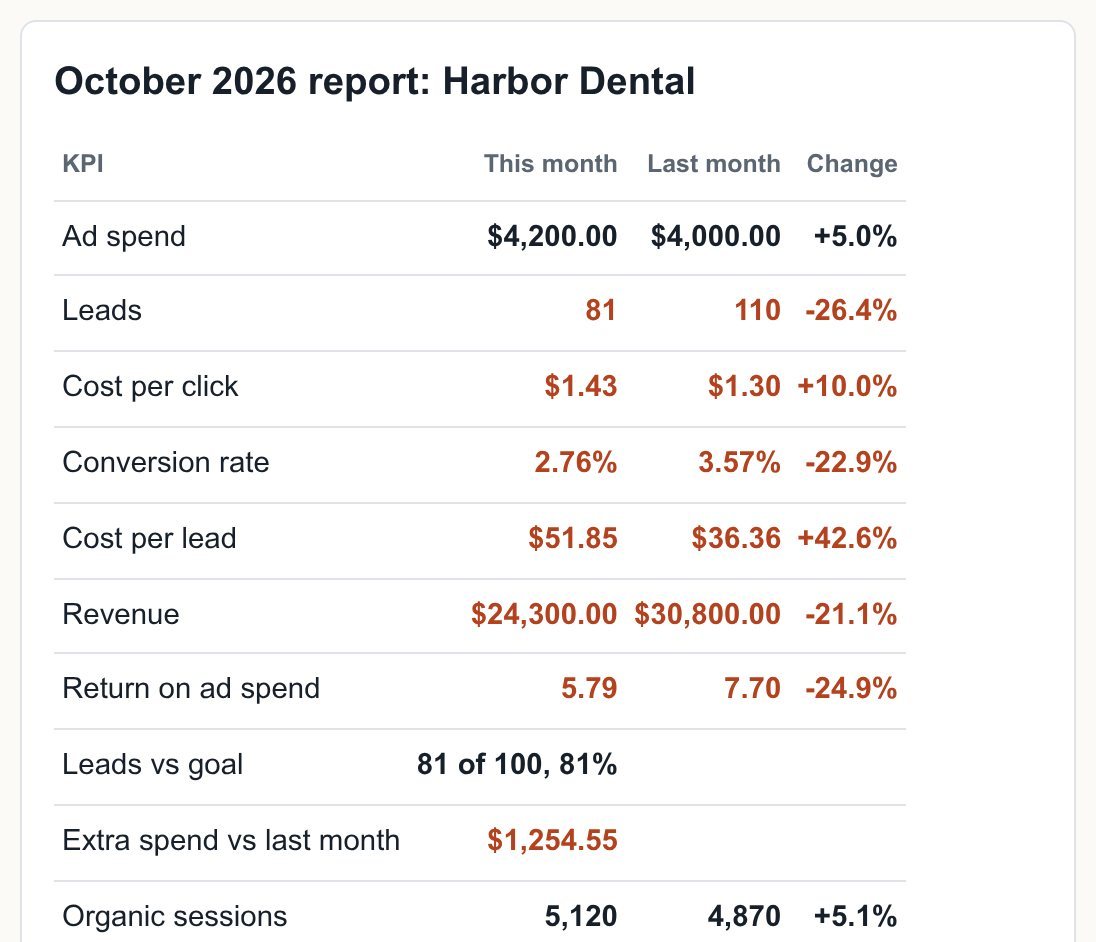 client reporting dashboard for agencies: monthly KPI report
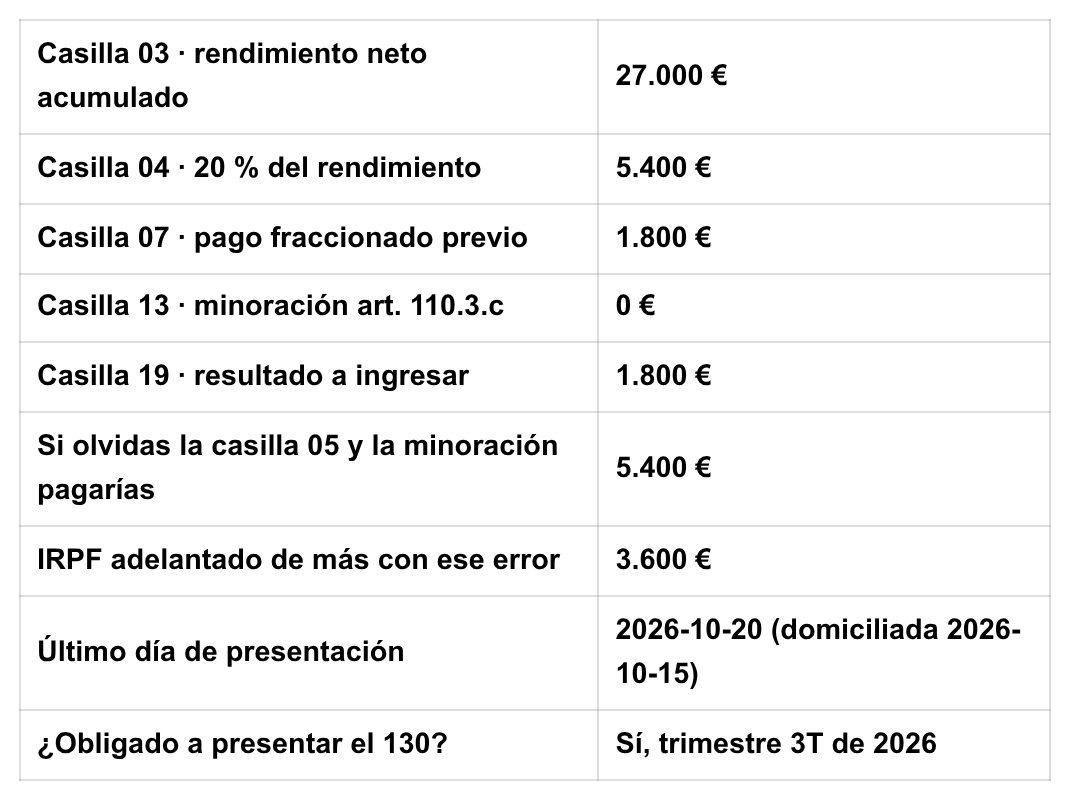 Calculadora Autónomo y Nómina 2026
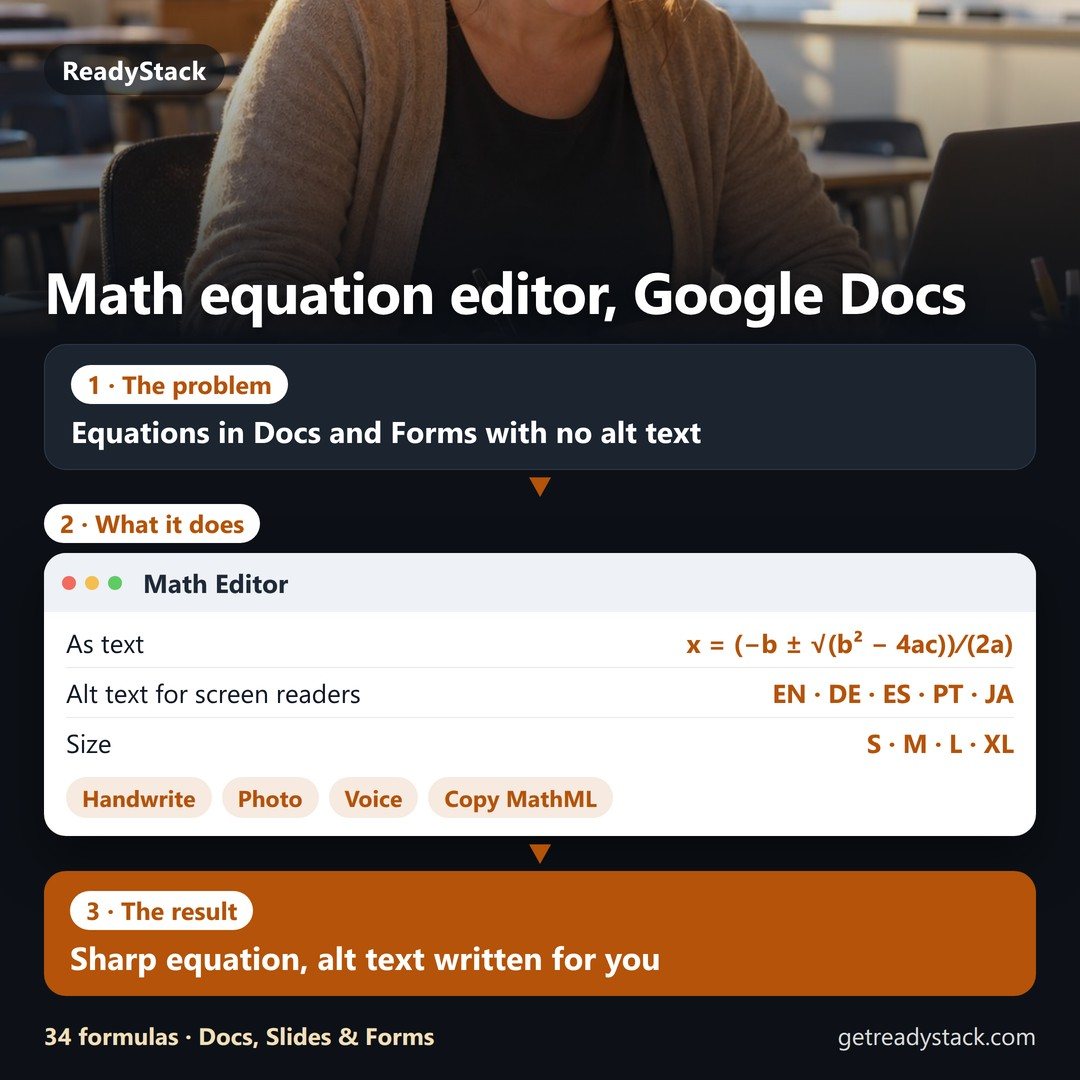 Math equation editor for Google Docs, Slides and Forms — alt text written for you
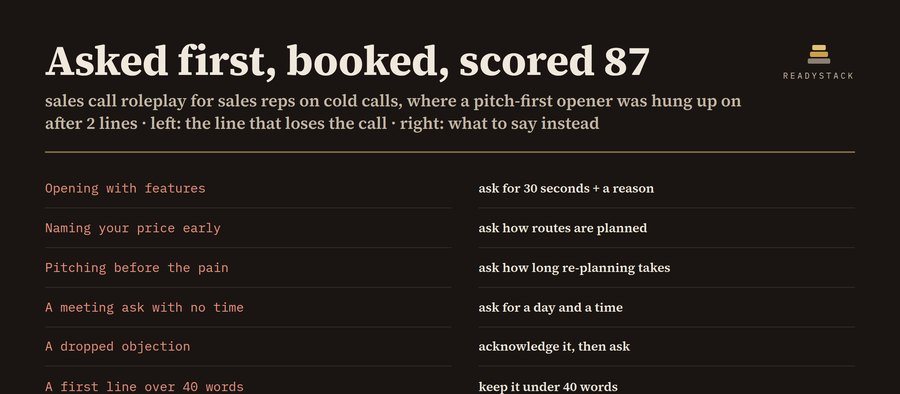 Sales call roleplay practice